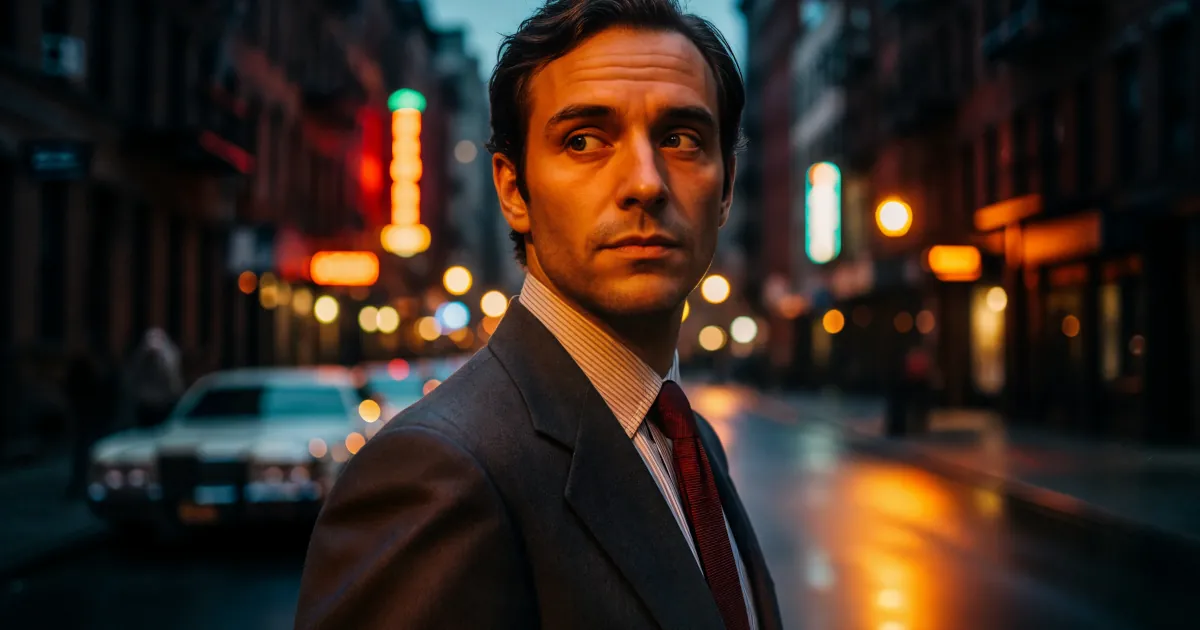

AI Tools That Make You Look Like a Movie Star
Ever watched your own video and thought, “Why do I look like I filmed this on a potato?” Meanwhile, on Instagram or TikTok, everyone else seems to be in a Marvel movie.
You don’t need a Hollywood budget to get that cinematic look. You just need the right AI tools.
In this article, we’ll walk through how you can transform your everyday clips with cinematic filters, lighting, and style — and how to use an AI image generator for personal media to upgrade your whole vibe.
Why Your Videos Don’t Look “Cinematic” (Yet)
Most raw clips look flat because:
- The lighting isn’t ideal
- The colors are boring or washed out
- The camera angle is too “webcam interview” and not “feature film”
- There’s no consistent visual style
Cinematic videos usually have:
- Mood: warm, cool, dark, dreamy, neon, vintage
- Depth: contrast between highlights and shadows
- Consistency: the same look across the whole video
- Attention to the face: flattering skin tones, subtle smoothing, natural eyes
AI tools help fix all of this automatically. That’s the magic.
What Do You Need an AI Image Generator for Personal Media?
You might think AI image generators are just for weird fantasy art or fake album covers, but they’re secretly powerful for upgrading your real-life content.
Here’s what you can use an AI image generator for personal media:
Look Boards for Your Style
Type prompts like:- “Cinematic portrait lighting, moody teal and orange, dramatic shadows”
- “Soft pastel film look, dreamy glow, lifestyle vlog”
Generate a bunch of looks, pick your favorites, and boom: you’ve got a visual style to aim for.
Reference Frames for Color Grading
Export your favorite AI-generated images and use them as reference frames in your editor or AI color-grading tool.
The tool can try to match your footage to that exact vibe.Virtual Backgrounds
No fancy apartment? No problem.
Use an AI image generator to create:- A stylish home office
- A futuristic neon cityscape
- A cozy café with soft window light
Then use a video editor or virtual background tool to place yourself inside that scene.
Thumbnail Magic
Your face + AI background + cinematic text = a thumbnail that looks like a movie poster.
You can generate backgrounds, props, or even “alternate universe” versions of yourself.
In short, an AI image generator for personal media is like a visual brainstorming partner and style guide. It helps you design the movie version of your life, then your video tools try to match it.
AI Tools That Turn Clips into Cinema
Let’s break down the types of AI tools that make you look like a movie star, even if you’re filming on your phone.
1. AI Cinematic Filters and Color Grading
These tools analyze your footage and apply a film-like style:
- Teal-and-orange action movie look
- Warm sunset vlog look
- Gritty noir style
- Soft, natural “indie film” look
Many apps now offer a “cinematic” preset powered by AI. They detect faces, skies, and backgrounds and adjust each part differently so you don’t end up orange and radioactive.
Look for features like:
- “AI color match” or “style match”
- “Film LUTs with AI detection”
- “Scene-based auto color”
Use your AI-generated reference images as targets, and the tool will try to match their mood.
2. AI Lighting Enhancers
Bad lighting is the fastest way to look less-than-glamorous. AI can help:
- Virtual key light: Brightens your face as if there’s a softbox in front of you.
- Background dimming: Keeps you bright while gently darkening the background for that professional “depth” look.
- Highlight and shadow balance: Prevents your forehead from glowing like a lighthouse while your eyes disappear into darkness.
Some tools even do “relighting”: they simulate light coming from a different direction. So if you filmed in flat overhead lighting, AI can add a fake side light to sculpt your face more dramatically.
3. AI Face Cleanup (Without Looking Fake)
We’ve all seen those filters that turn faces into plastic mannequins. That’s not the goal here.
The movie star look is more like:
- Subtle skin smoothing
- Gentle sharpening of eyes and lashes
- Slight brightening under the eyes
- Removing random blemishes or distractions
Many AI beauty or “studio” filters now have adjustable intensity. Keep it low to medium so you still look like you, just on your best day.
Tip:
Turn up detail in the eyes and hair while keeping the skin smoothing light. This keeps your face expressive and avoids the uncanny valley.
4. AI Background Control
AI makes background changes way easier than they used to be:
- Blur the background to fake that shallow depth-of-field “cinema lens” effect.
- Replace the background with a still or AI-generated environment.
- Tone down messy stuff with selective blur or darkening.
This is where your AI image generator for personal media really shines. Generate three or four “signature” backdrops, then use them across different videos. You’ll look like you live on a movie set instead of in a cluttered bedroom.
5. AI Style Presets for Your “Movie Universe”
Once you find a style you like, save it as:
- A preset in your editing app
- A custom filter
- A LUT (Look-Up Table)
Combine it with:
- Your AI-generated reference backgrounds
- Consistent color grading
- Similar lighting treatment
Suddenly, your content has a recognizable “universe” — like a TV show with a signature look. That’s how you go from random creator to “Oh, I know that style” in people’s feeds.
How to Build Your Movie-Star Workflow
Here’s a simple flow you can follow:
Design the Look with AI Images
- Use an AI image generator for personal media references: “cinematic vlog, warm tones, soft window light.”
- Save 3–5 favorites as your “look board.”
Shoot Your Footage
- Use the best light you’ve got (near a window is fine).
- Frame yourself at eye level or slightly above.
- Leave a bit of space above your head for cropping.
Apply AI Magic in Editing
- Add AI face cleanup (low–medium strength).
- Use AI cinematic filters or color match to your reference images.
- Use AI lighting to brighten you and slightly dim the background.
Set the Scene with AI Backgrounds
- Blur your real background, or
- Replace it with an AI-generated scene that matches your style.
Export and Reuse
- Save your color + lighting + face combo as a preset.
- Reuse it in future videos so your channel feels cohesive.
Subscribe for More AI Experiments
If you like the idea of turning boring footage into something that feels like a mini movie, keep playing with these tools. Mix and match:
- AI image generators for personal media style ideas
- AI video filters for color and light
- AI backgrounds for instant “set design”
Every clip can be a tiny film with its own mood.
Hashtags like:#AIvideoedit #AIstyle #Filmmaking
are full of creators showing off what’s possible, and you can absolutely be one of them.