
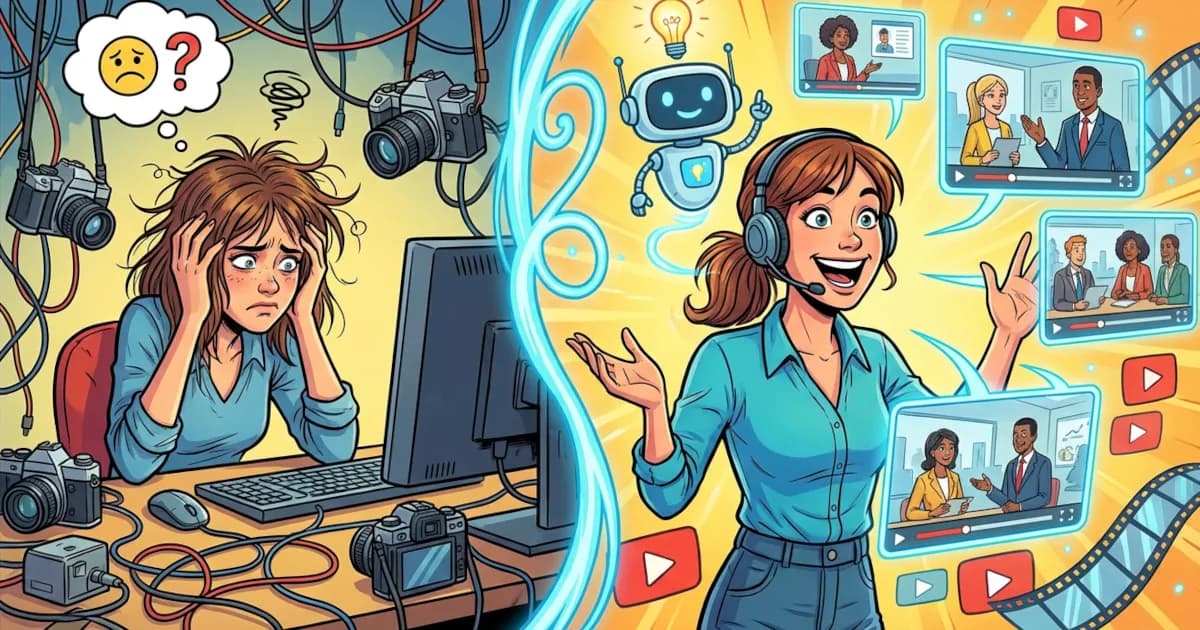
Create Training Videos for Teams Using AI
Create Training Videos for Teams Using AI
Want to stop repeating the same training presentation for the hundredth time? AI video tools can help you turn scripts, slides, and even plain text into polished training videos in minutes. No cameras. No fancy editing. Just smarter content creation.
If you’re running corporate training, onboarding, or internal comms, AI video can take a lot of the grind out of your process and keep things consistent, engaging, and easy to update.
Let’s break down how to use AI video for internal business communication and team training, step by step.
Why Use AI Video for Workplace Training?
Traditional training videos are a pain:
- You book a room
- Set up a camera
- Get someone to present
- Pray they don’t freeze on camera
- Edit, export, upload, repeat…
With AI video tools, that whole chain shrinks to something like:
Write → Generate → Share
Here’s why AI video works so well for workplace training:
- Huge time savings – Turn written documentation into videos in minutes instead of days.
- Consistency – Everyone gets the same clear message, every time, no matter the trainer or time zone.
- Easy updates – Policies change? Just tweak the script and regenerate the video.
- Scalable – Roll out standardized training across departments and regions with a few clicks.
- More engaging than PDFs – People are far more likely to watch a short video than read a long manual.
For internal communication, AI video lets you turn memos, policy updates, and process changes into short, friendly explainer videos that teams will actually pay attention to.
What Can You Use AI Training Videos For?
Pretty much any repeatable training or internal message can be turned into AI video content. Some ideas:
New hire onboarding
- Company overview
- Tool and platform walkthroughs
- HR policies and benefits explainer
Compliance and policy training
- Security and privacy best practices
- Code of conduct
- Health and safety procedures
Process and tools
- How to use internal systems
- How to submit expenses or PTO
- Sales or support playbooks
Internal comms and leadership updates
- Quarterly updates from leadership
- Change management announcements
- New product or feature briefings for internal teams
Anywhere you currently use slide decks, long emails, or PDFs, you can probably use AI-powered training videos instead.
How AI Video Creation Works (In Simple Terms)
Different tools have slightly different workflows, but most AI video platforms for training follow the same core steps:
You provide the content
- Paste in text
- Upload a script
- Import from slides, docs, or FAQs
You choose the style
- Talking-head avatar (human-like presenter)
- Text + visuals only
- Screen recording with overlays
- Mix of all three
The AI generates the video
- Voiceover from AI voice or cloned voice
- On-screen avatar lip-syncing
- Automatic scene splitting, pacing, and visuals
You edit and brand it
- Adjust wording and timing
- Add your logo, brand colors, and fonts
- Insert screenshots, diagrams, or real footage
You publish and share
- Export as MP4
- Share a link
- Embed into your LMS, intranet, or knowledge base
The best part: once your templates are set up, you can generate new training modules very quickly.
Step-by-Step: Creating Your First AI Training Video
Here’s a simple, repeatable process you can use.
1. Start with a Clear Training Goal
Before you open any tool, define:
- Who is this for? (New hires, sales team, managers, etc.)
- What should they be able to do after watching?
- How long should the video be? (5–10 minutes is usually ideal)
Example goal:
“Help new hires understand how to submit an expense report correctly in under 7 minutes.”
2. Turn Your Process into a Short Script
Write like you talk, not like a policy manual. Keep it conversational and actionable.
Basic script structure:
- Intro
- Who/what this video is for
- What they’ll learn
- Main steps
- Step-by-step walkthrough
- One main idea per “scene”
- Summary / next steps
- Quick recap
- Where to find help or documentation
Tip: If writing isn’t your thing, many AI tools or assistants (like me) can help turn your bullet points into a clean script.
3. Choose Your AI Video Format
Pick based on audience and content:
Avatar + slides
Great for company-wide announcements, compliance training, or policy explainers.Screen recording + voiceover
Perfect for tool training, dashboards, and “how to do this in the system” videos.Text + icons + voiceover
Good for quick explainers, microlearning modules, and reminders.
Many internal teams use a mix of these formats to keep content visually interesting.
4. Add Branding and Structure
Consistency makes your training feel professional and trustworthy. Set up:
- Intro and outro templates
- Standard fonts, colors, and logo placement
- A simple lower-third for names and titles (for avatars or leadership messages)
- A standard “what’s next” slide for follow-up actions or links
Do this once, and your future AI videos will look like they all belong together.
5. Generate, Review, and Tweak
When your AI video is generated:
- Check the pacing: too rushed or too slow?
- Make sure terminology matches what your team actually uses.
- Verify that all steps are correct and in the right order.
- Trim any fluff; keep it focused.
Think of the AI as a video assistant, not a final authority. You still own the quality bar.
6. Share Smartly and Track Engagement
You can:
- Upload to your Learning Management System (LMS)
- Embed in internal wikis, Notion, or Confluence
- Link in onboarding checklists or email sequences
- Drop short refreshers into Slack, Teams, or your intranet
If your platform allows, track:
- Who completed the video
- Drop-off points (where people stop watching)
- Quiz results, if included
Use that data to shorten or tighten future videos.
Best Practices for AI Training Videos That Don’t Bore People
To make AI-driven training actually helpful, keep these in mind:
Aim for short, modular lessons
5–10 minutes per video works better than a single 45-minute marathon.Use simple language
Your team shouldn’t need a dictionary to understand compliance training.Show, don’t just tell
Include screen captures, diagrams, or examples whenever possible.Add captions by default
Helps with accessibility and people watching on mute.Update instead of redoing
One of the superpowers of AI video is quick updates. Just re-record that one section you changed.Mix formats for variety
A series might include: avatar intro → tool walkthrough → short recap explainer.
Where AI Video Fits in Your Training Strategy
AI video doesn’t replace human trainers or live sessions. It makes them more effective by:
- Handling repetitive basics (so humans can focus on deeper coaching).
- Standardizing core messages across locations and departments.
- Giving people on-demand refreshers when they forget.
Think of AI-generated video as your “always available, perfectly consistent” trainer that covers the fundamentals, while your real trainers handle questions, practice, and nuance.